Firestorm 7.1.13.78266 quietly introduced a game-changing feature: Poser
What is Poser?
Poser is an integrated pose editor that allows users to manipulate the joints and positions of their own avatars and animesh objects. Whether you’re setting up a dramatic snapshot or animating a scene, Poser gives you granular control over body positioning—all without needing external poseballs or third-party HUDs.

Origins and Evolution
Originally developed for the Black Dragon viewer, Poser was known for its precision and flexibility. Firestorm adapted and refined the tool, making it more accessible and intuitive for a broader user base. The interface is clean and user-friendly, with sliders and visual feedback that make posing feel more like sculpting than scripting.
Why it matters
Unlike the official Linden Lab Second Life Viewer, Firestorm now offers native pose editing—a feature long requested by creatives. This means:
- No need to upload custom animations just to tweak a pose.
- Real-time adjustments for hands, limbs, head, and torso.
- Ability to save and reuse poses across sessions.
- Enhanced compatibility with animesh companions and props.
Key Features
- Pose your own avatar with full joint control
- Pose animesh objects for storytelling or display
- Save and load pose presets
- Intuitive UI with visual joint indicators and sliders
Creative Potential
Whether you’re shooting a fashion spread, directing a fantasy tableau, or animating a dance sequence, Poser opens up new possibilities for expressive storytelling in Second Life. It’s a quiet addition—but one that speaks volumes to the creative community.
TUTORIAL
Firestorm Poser Tutorial: Pose Like a Pro
Firestorm’s Poser tool lets you sculpt avatar and animesh poses directly in-world—no external HUDs, no poseballs, no uploads required. Whether you’re setting up a photo shoot or animating a scene, Poser gives you precision control with an intuitive interface.
Step 1: Enable Poser
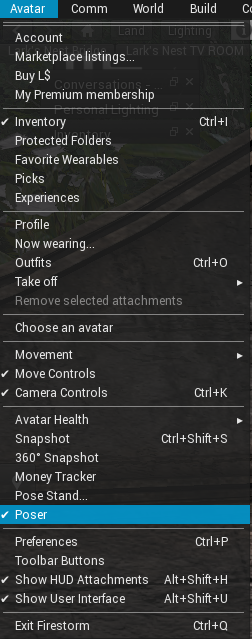
- Open Firestorm Viewer (version7.1.13.78266 or later).
- Go to the Avatar menu in the top toolbar.
- Select Poser from the dropdown.
If you don’t see it, make sure you’re using the correct viewer version and that your avatar is fully rezzed.
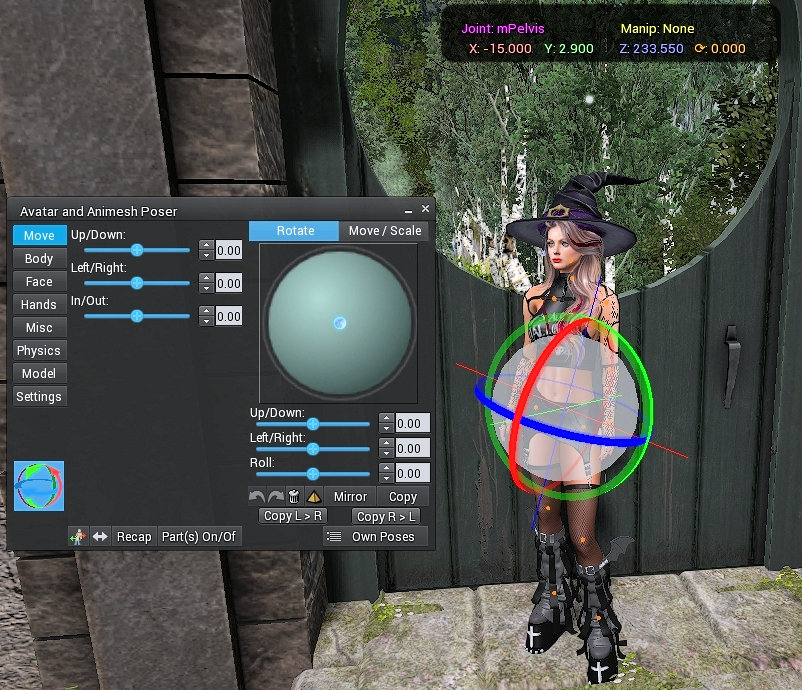
Step 2: Understand the Interface
The Poser window includes:
- Avatar Selector: Choose yourself, or an animesh object.
- Joint List: A scrollable list of bones (e.g., spine, arms, legs, fingers).
- Sliders: Adjust rotation along X, Y, and Z axes.
- Pose Presets: Save and load custom poses.
- Reset Button: Reverts joints to default position.
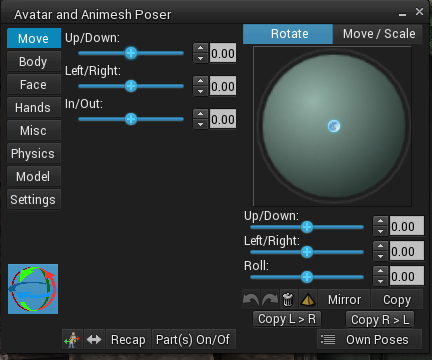
Step 3: Start Posing
- Select the avatar or object you want to pose.
- Choose a joint (e.g., “Right Arm”).
- Use the sliders to rotate the joint until it looks right.
- Repeat for other joints to build a full-body pose.
Tip: Use camera controls to view your avatar from multiple angles while posing.
Step 4: Save Your Pose
Once satisfied:
- Click Own Poses.
- Name your pose and click Save Diff.
- You can later Load Pose to reuse it.

Step 5: Snap the Shot or Animate
- Use Firestorm’s built-in snapshot tools to capture your scene.
- For animation, combine Poser with gesture triggers or scripted sequences.
Pro Tips
- Combine Poser with Windlight settings for dramatic lighting.
- Use animesh objects for expressive props or companions.
- Save multiple versions of a pose to create subtle variations.